
Introduction
In today's digital age, the migration of data and assets has become a critical link in the continuous development of enterprises. VMware virtual machine migration is not only a technical task but also a systematic project involving multiple aspects. It requires us to thoroughly sort out existing asset information, carefully plan the path of data migration, execute specific migration operations, and ensure seamless business transition during the migration process. The success of this process not only depends on the support of cutting-edge technology and meticulous planning but also on a deep understanding and insight into business processes and data architecture.
This article will delve into VMware virtual machine data migration strategies, tools, processes, and best practices, aiming to provide readers with a comprehensive guide to help enterprises successfully complete this critical task. Let's explore how to lay a solid foundation for the future development of enterprises through carefully planned data migration.
Sangfor provides four migration methods for VMware data migration users to meet the migration needs of various scenarios:
- VMware Managed Migration: Use Sangfor cloud/virtualization platform to manage vCenter for data migration.
- SCMT Agentless Point-to-Point Migration: Use Sangfor migration tools to connect to vCenter for data migration.
- SCMT Agent-based Point-to-Point Migration: Use migration tools to connect to agent plugins for data migration based on data replication.
- SCMT Agent-based Hot Backup Migration: Use migration tools to connect to agent plugins for migration based on CDP technology.
Key Information Collection and Assessment Before Migration
Before performing VMware virtual machine migration, detailed information collection should be conducted to determine the migration plan, including:
- Models of physical servers, external storage, network equipment, etc.: Assess the support for existing physical storage and network equipment. If the existing equipment reaches its service life expectancy or is incompatible with the new platform, consider adopting a new resource pool for support.
For the compatibility list of Sangfor cloud/virtualization platform hardware and software, please refer to here.

- vCenter/ESXi version: Assess whether it supports connecting to VDDK using agentless migration mode. If not, adopt an agent-based approach for migration. The following table shows the versions of Sangfor-supported agentless migration.
table border="1" cellpadding="5" cellspacing="0"> VMware platform compatibility list (for agentless method) VMware ESXi 5.5/6.0/6.5/6.7/7.0/7.0.2 vSphere 5.5/6.0/6.5/6.7/7.0/7.0.2
- Types of business applications, bearing pressure, downtime window: Assess the acceptable downtime for business and determine the suitable migration method for each application virtual machine. The actual environment may vary due to network and storage performance differences. The following table provides laboratory test data for reference only.
| Operating System | Migration Method | Switch Time |
|---|---|---|
| Windows Server | Managed Migration | 7 minutes 8 seconds |
| Point-to-Point Migration (Agentless) | 5 minutes 7 seconds | |
| Point-to-Point Migration (Agent-based) | 3 minutes 27 seconds | |
| SCMT Hot Backup Migration | 1 minute 22 seconds | |
| Linux | Managed Migration | 8 minutes 22 seconds |
| Point-to-Point Migration (Agentless) | 2 minutes 51 seconds | |
| Point-to-Point Migration (Agent-based) | 4 minutes 6 seconds | |
| SCMT Hot Backup Migration | 1 minute 13 seconds |
- Operating system version: Avoid using outdated versions that are not supported. If not supported, consider adopting a migration path that involves replacing the operating system. The following table shows the compatibility support for some operating systems.
| Migration Method | Source IP | Destination IP | Destination Port | Protocol | Port Service Description |
|---|---|---|---|---|---|
| Windows | Windows XP SP2 | 32/64 | BIOS | ✓ | ✓ |
| Windows 7 | 32/64 | BIOS | ✓ | ✓ | |
| Windows 8 | 32/64 | BIOS | ✓ | ✓ | |
| Windows 10 | 32 | BIOS | ✓ | ✓ | |
| Windows 10 | 64 | BIOS/UEFI | ✓ | ✓ | |
| Windows 11 | 64 | BIOS/UEFI | ✓ | ✓ | |
| Windows Server 2003 SP1 | 32/64 | BIOS | ✓ | ✓ | |
| Windows Server 2003 R2 | 32/64 | BIOS | ✓ | ✓ | |
| Windows Server 2008 | 32/64 | BIOS | ✓ | ✓ | |
| Windows Server 2008 R2 | 64 | BIOS | ✓ | ✓ | |
| Windows Server 2012 | 64 | BIOS/UEFI | ✓ | ✓ | |
| Windows Server 2012 R2 | 64 | BIOS/UEFI | ✓ | ✓ | |
| Windows Server 2016 | 64 | BIOS/UEFI | ✓ | ✓ | |
| Windows Server 2019 | 64 | BIOS/UEFI | ✓ | ✓ | |
| Windows Server 2022 | 64 | BIOS/UEFI | ✓ | ✓ | |
| SUSE | SUSE Linux Enterprise 11 SP3 | 32 | BIOS | ✓ | ✓ |
| SUSE Linux Enterprise 11 SP3 | 64 | BIOS/UEFI | ✓ | ✓ | |
| SUSE Linux Enterprise 11 SP4 | 32/64 | BIOS | ✓ | ✓ | |
| Red Hat | Red Hat Enterprise Linux 5.6 | 32/64 | BIOS | ✓ | ✓ |
| Red Hat Enterprise Linux 5.7 | 32/64 | BIOS | ✓ | ✓ | |
| Red Hat Enterprise Linux 5.8 | 32/64 | BIOS | ✓ | ✓ | |
| Red Hat Enterprise Linux 5.9 | 32/64 | BIOS | ✓ | ✓ | |
| Red Hat Enterprise Linux 5.10 | 32/64 | BIOS | ✓ | ✓ | |
| Red Hat Enterprise Linux 5.11 | 32/64 | BIOS | ✓ | ✓ | |
| Red Hat Enterprise Linux 6.0 | 32/64 | BIOS | ✓ | ✓ | |
| Red Hat Enterprise Linux 6.1 | 32/64 | BIOS | ✓ | ✓ | |
| Red Hat Enterprise Linux 6.2 | 32/64 | BIOS | ✓ | ✓ | |
| Red Hat Enterprise Linux 6.3 | 32/64 | BIOS | ✓ | ✓ | |
| Red Hat Enterprise Linux 6.4 | 32/64 | BIOS | ✓ | ✓ | |
| Red Hat Enterprise Linux 6.5 | 32 | BIOS | ✓ | ✓ | |
| Red Hat Enterprise Linux 6.5 | 64 | BIOS/UEFI | ✓ | ✓ | |
| Red Hat Enterprise Linux 6.6 | 32 | BIOS | ✓ | ✓ |
- Virtual device format and file system type: Assess the support for data migration. General file systems are basically supported, and bare disk media does not need to be migrated and can be remapped for use. The following table shows the support list for disks and files by the Sangfor migration tool.
| Disk and file system support list | |
|---|---|
| File | ext2, ext3, ext4, xfs, FAT, FAT32, NTFS, ReFS |
| Device format | LVM, GPT, MBR, Dynamic volume, Spanned volume, Striped volume |
- Network port policy: Check the network port policy and open the management and data transfer ports between the migration source and target as needed to prevent migration failure. The following table shows the port communication conditions for each migration method as an example.
| Migration Method | Source IP | Destination IP | Destination Port | Protocol | Port Service Description |
|---|---|---|---|---|---|
| VMware Managed Migration | Sangfor Platform | vCenter | 443 | TCP | Issue Management Platform Command |
| Sangfor Platform | ESXi | 902 | TCP | Perform Virtual Machine Data Transfer | |
| SCMT Migration Task Management | Management PC | Server | 22 | TCP | Access Migration Server Backend |
| Management PC | Server | 80,443 | TCP | Access Server's Web Service | |
| SCMT Point-to-Point Migration (Agentless) | SCMT Server | vCenter | 443 | TCP | Issue Management Platform Command |
| SCMT Server | ESXi | 902 | TCP | Perform Virtual Machine Data Transfer | |
| SCMT Point-to-Point Migration (Agent-based) | Source/Target | SCMT Server | 80 | TCP | Download Agent Plugin (Manual Import Possible) |
| Source/Target | SCMT Server | 20000~20047 | TCP | Agent Connect to Server | |
| Source | Target | 20000~20047 (Any) | TCP | Synchronize Data Transfer Port | |
| SCMT Server | Target | 26000~26600 | TCP | Transfer Control Information During Point-to-Point Switch | |
| SCMT Live Backup Migration (Agent-based) | Source/Target | SCMT Server | 80 | TCP | Download Agent Plugin (Manual Import Possible) |
| Source/Target | SCMT Server | 20000~20003 | TCP | Agent Connect to Server | |
| Target | SCMT Server | 20000~20003 | TCP | Backup/Hot Backup Migration Data Transfer |
- Migration network information: Evaluate the impact on the business network based on the network bandwidth during migration transfer and calculate and arrange the overall migration work time. The following table provides examples for some system migrations.
- System resource configuration and occupancy rate: Assess whether the operating system needs resource and configuration adjustments after migration. Considering the impact of application binding, it is a principle to only expand and not reduce.
VMware Managed Migration Based on Agentless Technology
Sangfor's cloud/virtualization platform has built-in capabilities to manage VMware, supporting the migration of VMware virtual machines to a new platform while running through the management of vCenter by invoking the VDDK interface. It allows for batch system migration in the powered-on state, and during the final phase of migration, the source virtual machine is shut down to complete the migration. The overall process adopts a method similar to vMotion, simplifying and efficiently completing the migration action.
Key steps for VMware managed migration are as follows:
- Sangfor's cloud/virtualization platform connects to vCenter, needing to open the 443 and 902 ports between the Sangfor platform and vCenter, compatible with vCenter versions 5.0 ~ 7.0.2. 2.
- After the managed connection is completed, select multiple business virtual machines for batch migration. During the migration process, a maximum of two virtual machines are migrated concurrently, while the rest are queued in order. The overall migration rate depends on network quality and storage rate.
- In Sangfor's cloud/virtualization platform, configure the migration tasks, determining the running location, network connection, migration speed limit, compression transmission, etc., for each virtual machine after migration, and initiate the virtual machine migration task.
- During the final stage of migration, after the virtual machine image format conversion is completed, the platform will automatically start the virtual machine for driver injection and configuration optimization, while the source end virtual machine is shut down (not deleted), and the business is switched to the target virtual machine access.
- Initiated by business and operations personnel, verify that the business system access is normal, indicating that the migration is complete. If business access is abnormal and needs to be rolled back, you can shut down the target end and restart the VMware virtual machine to restore business.
Precautions for VMware managed migration:
- Unmigratable scenarios: VMware virtual machines mounted with external storage LUNs, bare disk mapping RDMs, USBKEY mappings, etc., cannot be captured by VDDK snapshots and cannot be migrated to the Sangfor platform through managed migration. It is recommended to unmount before migration and manually remount/map to the new virtual machine after migration.
- Migration configuration changes: The effect of managed migration is to completely replicate the source virtual machine to the new platform, including CPU, memory, IP, hostname, storage, and other resources, which will not change. If modifications are needed, please manually configure during business launch. The MAC address and UUID of the virtual machine after migration will change. If some applications rely on MAC and UUID for authorization or function binding, please modify the configuration on the platform after migration.

- Avoiding snapshot effects: Managed migration is based on snapshots to capture and compare the data differences of VMDK. During the entire migration process, multiple snapshot actions are performed, which have a significant impact on business performance. Therefore, high-load business migration work needs to apply for a specific business downtime window to proceed.
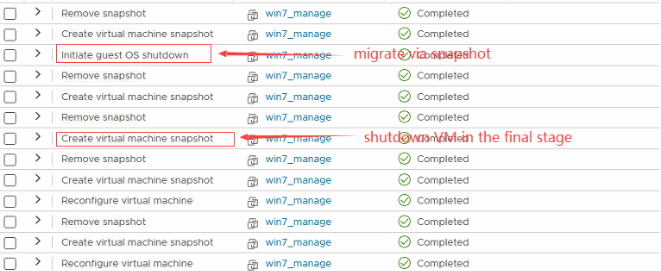
- Migration shutdown switching: The entire managed migration process is fully automated. After the migration task starts, including data transfer, target startup, and network switching, all are automatically realized by the system. Apart from manual shutdown and business verification, no human intervention is required. The advantage is that the migration operation is simple, but the disadvantage is that configuration changes are uncontrollable, and there is a shutdown risk at the source end. If business applications are very sensitive to continuity or need to control the switching process details, please use the SCMT tool for migration.
Sangfor VMware Migration Technology Summary
In this article, we’ve focused on the key highlights of our VMware Virtual Machine Data Migration Solution Part 2. If you’d like to dive deeper into the complete migration methods — including SCMT Point-to-Point Migration (Agentless & Agent-based) and SCMT Hot Backup Migration — you can download the full PDF guide